How I Built a Document Signing System Without DocuSign
How I built a document signing system with PDF field positioning, email reminders, and signing flows — replacing $15/mo per-user SaaS with custom code.
By Mike Hodgen
Every SaaS vendor in the document signing space wants to charge you like you're running a Fortune 500 legal department. When I needed employees at my DTC fashion brand to sign onboarding paperwork — offer letters, handbook acknowledgments, direct deposit forms — DocuSign quoted $15 per user per month on the business plan. The free tier is useless for anything beyond personal one-offs. I decided to build a document signing system instead.
The math is straightforward. Ten employees times $15 per month equals $1,800 per year. That's just to put a signature on a PDF. HelloSign, PandaDoc — same ballpark pricing. For a small brand in San Diego with seasonal hires rotating through, that number is hard to justify.
The core technical problem behind all of these platforms is embarrassingly simple: position fields on a PDF, let someone fill them in, capture a signature, flatten the result, store it. That's the entire product. The complexity is in the polish, the edge cases, and the enterprise features — most of which a team under 50 people will never touch.
So I built it. The whole thing runs on infrastructure I was already paying for. Total incremental hosting cost: effectively zero.
I've written separately about the pricing decisions that shaped Inked/Sign — the business model, positioning, and SaaS strategy behind turning this into a product. This article is purely about the technical build. How the signing flow actually works, what was harder than expected, and what I'd do differently.
What a Document Signing System Actually Needs
Before writing a single line of code, I mapped the actual requirements. Not what DocuSign offers. What I actually needed.
The Minimum Viable Signing Flow
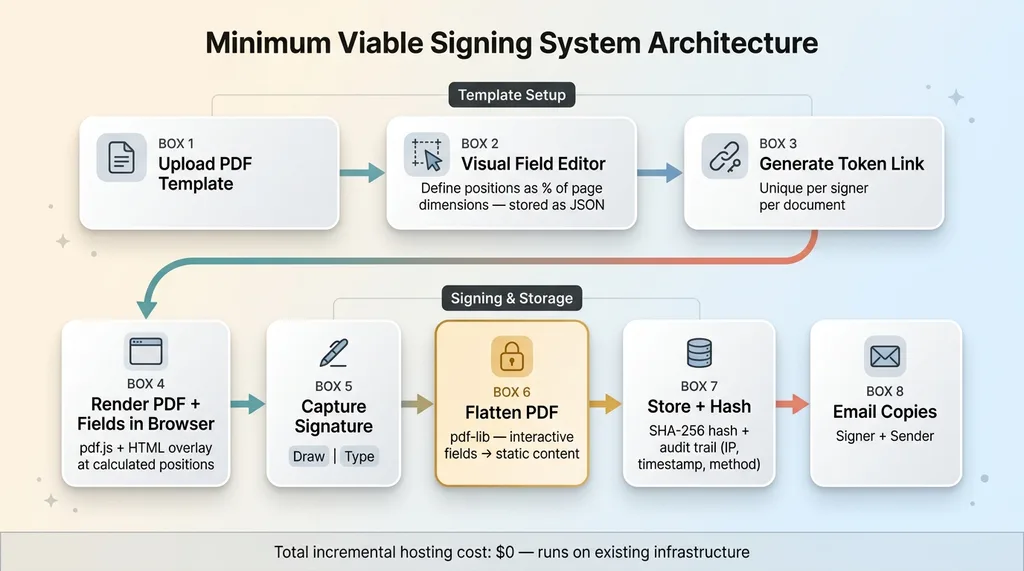
Eight things. That's it.
 Minimum Viable Signing System Architecture
- Upload a PDF template. The base document — offer letter, handbook, whatever — as a standard PDF.
- Define field positions. Signature blocks, date fields, text inputs, checkboxes, initials. Each one pinned to a specific spot on a specific page.
- Generate a unique signing link. A tokenized URL that identifies the document, the signer, and the session. One link per signer per document.
- Render the PDF with interactive fields in the browser. The signer sees the document with fillable fields overlaid exactly where they belong.
- Capture the signature. Drawn with a finger or stylus, or typed and rendered in a script font.
- Flatten fields into the final PDF. This converts interactive form elements into static content. The signed document becomes a locked image — no one can go back and edit fields.
- Store the signed document with an audit trail. The final PDF plus metadata: who signed, when, from what IP, using what method.
- Email copies. Signer gets their copy. Sender gets notification that the document is complete.
What You Can Skip (At Least Initially)
You don't need SSO authentication. You don't need bulk sending for hundreds of recipients. You don't need sequential multi-party signing with conditional routing — parallel signing (everyone signs independently) covers 90% of real use cases.
And you can skip the legal compliance theater. The ESIGN Act of 2000 already makes electronic signatures as legally binding as wet ink signatures for most business documents in the US. UETA covers it at the state level. The legal requirements are: intent to sign, consent to do business electronically, and a record of the transaction.
You don't need blockchain. You don't need a certificate authority. You don't need a third-party attestation service. For internal HR documents, a SHA-256 hash and an audit log with timestamps and IP addresses is more than sufficient.
PDF Field Positioning: The Hardest Part Nobody Warns You About
This is where most DIY e-signature attempts die. Not on the signing flow. Not on email delivery. On getting a signature field to appear in the right spot on the page.
The Coordinate System Problem
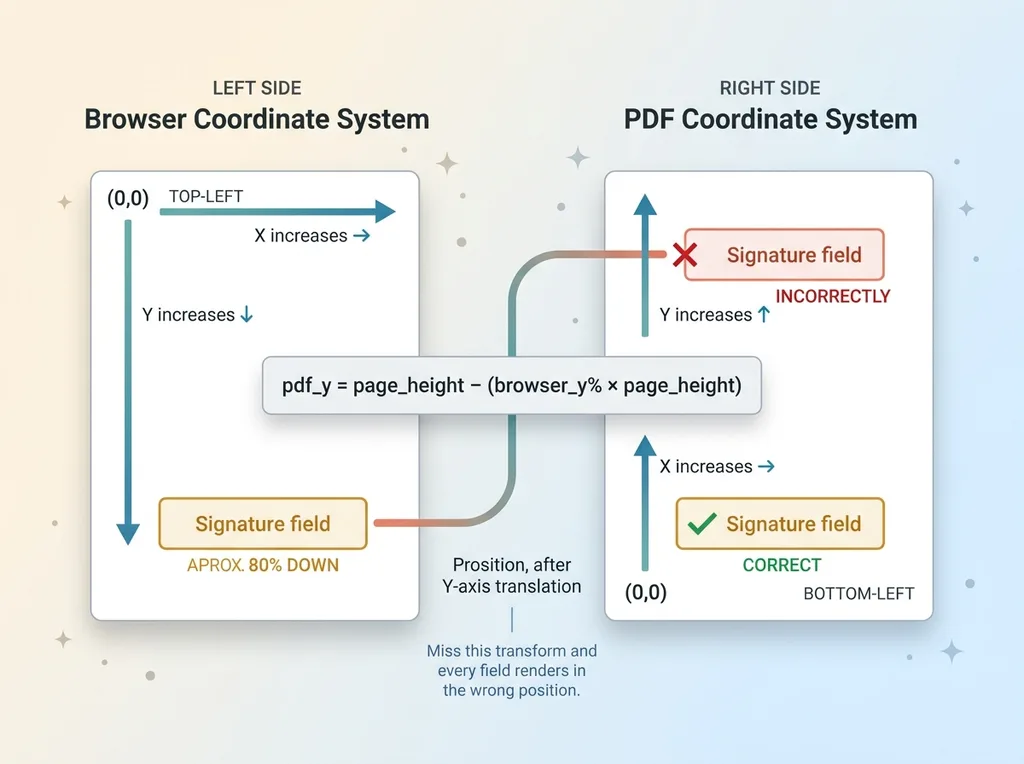
PDFs use a coordinate system where (0,0) is the bottom-left corner, measured in points — 72 points per inch. Browsers render with (0,0) at the top-left, measured in pixels. These two systems are fundamentally inverted on the Y axis.
 PDF Coordinate System Inversion
If you ignore this, every field you place in the browser will appear in the mirror-wrong position on the final PDF. A signature block you positioned near the bottom of the page will render near the top. I learned this the hard way on iteration one.
The formula for the Y-axis translation:
pdf_y = page_height - (browser_y_percentage × page_height)
Miss that single transform and nothing lines up.
Building a Visual Field Editor
I built a visual editor that lets you place fields by clicking and dragging on the document. Here's how it works:
The PDF page renders as an image using pdf.js on the client side. A canvas layer sits on top where you can click to place fields and drag to size them. The critical design decision: store all coordinates as percentages of page dimensions, not absolute pixels. This means fields scale correctly regardless of the signer's screen size, resolution, or zoom level.
Each field definition stores: type (signature, text, date, checkbox, initials), page number, x and y position as percentages, width and height as percentages, a required flag, and which signer the field is assigned to. The complete field layout for a template gets stored as a JSON object alongside the template PDF.
When a signer opens the document, the system reads that JSON, renders the PDF, and overlays interactive HTML form elements at the calculated positions. The browser does the percentage-to-pixel math on the fly based on the current viewport.
I went through three full iterations before coordinates mapped correctly across different screen sizes and zoom levels. The first version used absolute pixel positions — broke immediately on mobile. The second version used percentages but forgot the Y-axis flip — every field was upside down relative to where it should be. The third version finally worked. This is a 15-hour problem disguised as a 2-hour problem.
The Signing Flow: From Link to Locked PDF
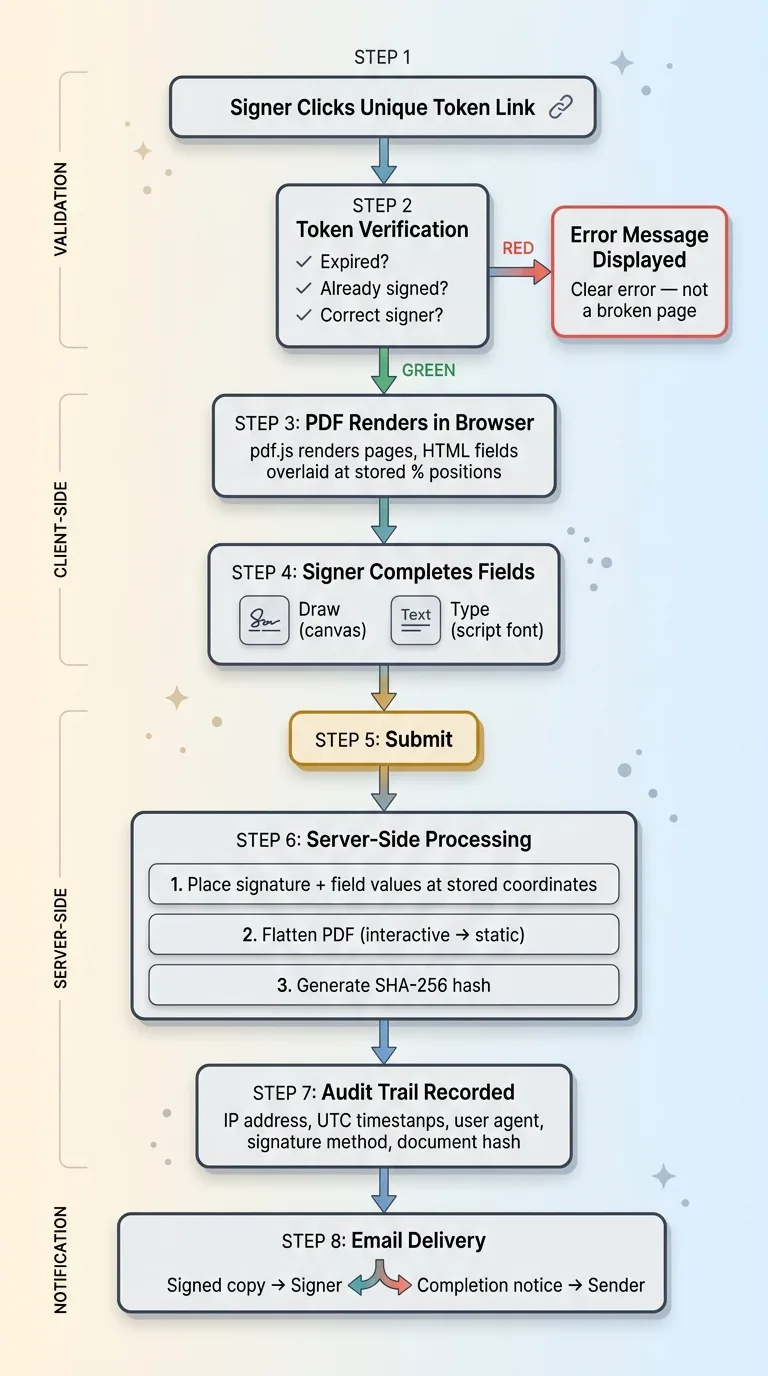
When a signer clicks their unique link, here's exactly what happens.
 Complete Signing Flow Architecture
The system verifies the token. Is it expired? Has the document already been signed? Is this the right signer? If any check fails, the signer sees a clear error message — not a broken page.
If valid, the PDF renders in the browser with interactive fields overlaid at the stored positions. The signer works through each field: typing their name, checking boxes, entering dates.
Signature Capture
For the signature itself, two options. An HTML5 canvas element where the signer draws with a mouse, finger, or stylus. Or a typed signature where they enter their name and the system renders it in a script font. Both methods store the raw data — the canvas stroke coordinates for drawn signatures, or the typed text plus font identifier for typed ones.
Drawn signatures feel more "official" to signers, but typed signatures have a higher completion rate in my experience. Fewer people bail when they don't have to fumble with drawing on a trackpad. I offer both and let the signer choose.
PDF Flattening and Tamper Prevention
On submit, the real work happens server-side. The system takes the signature image and all field values and places them at the stored coordinates on the PDF. Then it flattens the document.
Flattening is critical. It converts interactive form fields into static content baked into the PDF. The result is a document where the signatures and field values are part of the page image — they can't be selected, edited, or removed. Without flattening, someone could open the PDF in Acrobat and change field values. With flattening, the signed document is locked.
My specific library recommendation: pdf-lib in JavaScript is the most reliable option for field placement and flattening. PyPDF2 works for simple cases but gets unreliable with complex field positioning and multi-page documents. I use pdf-lib on the server side with Node.
After flattening, the system generates a SHA-256 hash of the final PDF and stores it alongside the file. If anyone ever questions whether a document was altered post-signing, you re-hash the stored file and compare. If the hashes match, the document is untouched.
The Audit Trail
The audit trail captures: signer's IP address, UTC timestamp of each action (opened, filled, signed), browser user agent, signature method (drawn or typed), and the document hash. This is your evidence. For internal HR documents, this level of documentation exceeds what most companies have with their wet-ink paper processes — which is usually a filing cabinet and a prayer.
Email Reminders That Don't Get Ignored
Unsigned documents are worthless. I've seen HR teams chase paper signatures for weeks. The reminder system matters more than most people realize when they plan a DIY e-signature build.
 Email Reminder Sequence and Impact
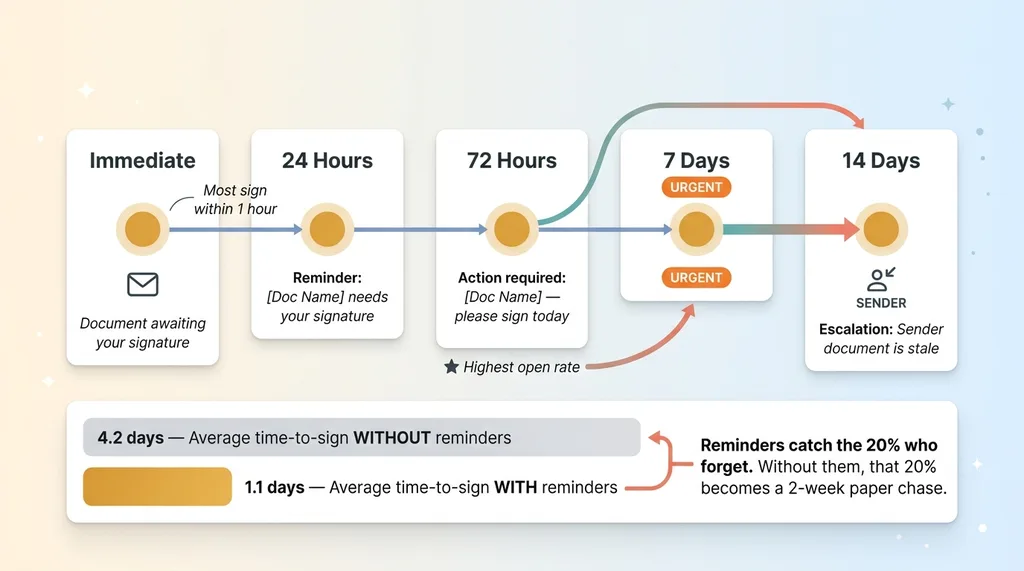
My approach is a five-stage sequence: immediate email with the signing link when the document is created, automated reminder at 24 hours if unsigned, second reminder at 72 hours with a different subject line, third reminder at 7 days flagged as urgent, and after 14 days a notification goes to the sender that the document is stale and needs attention.
Implementation is a cron job that queries for unsigned documents past their reminder thresholds. Each reminder updates a last_reminded_at timestamp to prevent double-sending.
Subject line progression matters more than you'd think. "Document awaiting your signature" becomes "Reminder: [Document Name] needs your signature" becomes "Action required: [Document Name] — please sign today." Open rates on that third email are actually the highest because of the urgency framing.
For onboarding at my brand, this cut average time-to-sign from 4.2 days to 1.1 days. Most people sign within an hour of the first email. The reminders catch the 20% who forget or get busy. Without them, that 20% turns into a two-week paper chase.
How This Works in Practice: HR Onboarding at My Brand
Here's the concrete use case. When a new hire starts, they need to sign four documents: offer letter, employee handbook acknowledgment, direct deposit authorization, and a photo/likeness release — we use employee photos in marketing content.
Previously this was printed, signed in person during the first day, scanned, and filed manually. If someone started remotely or forgot to bring ID, the process stalled.
Now HR uploads each template once and positions fields once. For each new hire, the system generates a signing package — all four documents with a single link. The signer works through each document sequentially. All four signed PDFs get stored, hashed, and the HR dashboard shows completion status in real time.
Time from "send documents" to "all signed": typically under 2 hours. The previous paper process could take a week of chasing. The entire system handles maybe 20-30 signing events per month. DocuSign would charge $180 per year minimum for this volume. My hosting cost: zero incremental — it runs on existing infrastructure.
This feeds into broader HR compliance workflows I've built at the brand, where signed documents automatically trigger the next onboarding steps.
When Building Your Own PDF Signing System Makes Sense (and When It Doesn't)
Honest assessment. Not everyone should build this.
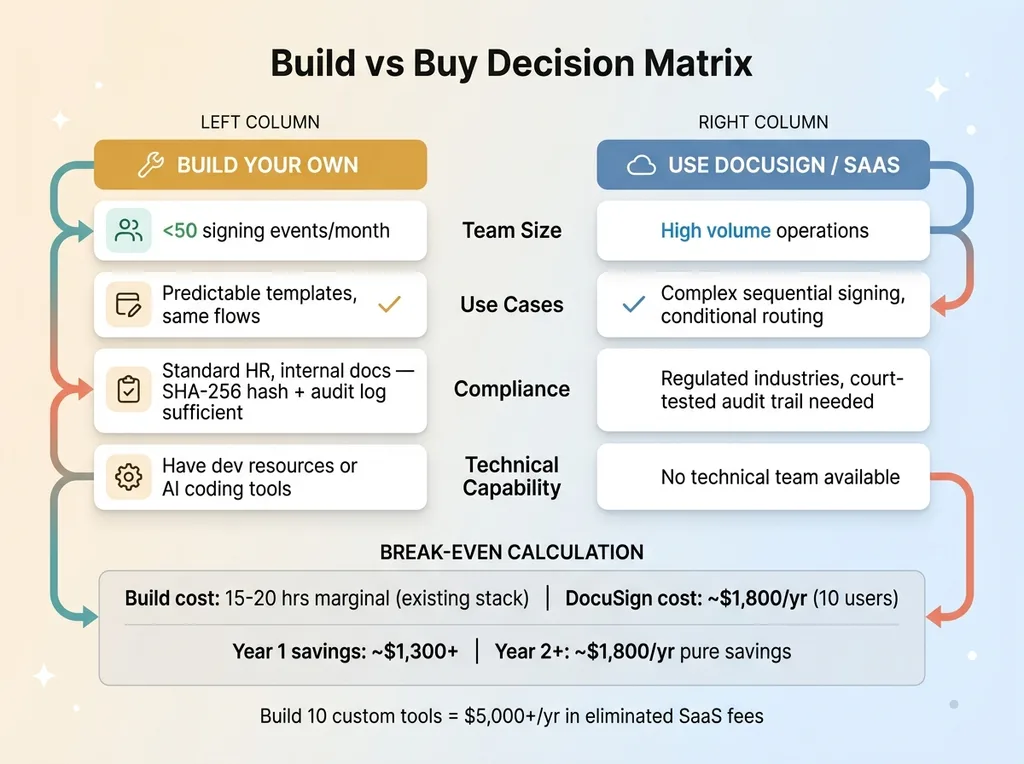 Build vs Buy Decision Matrix
Build when: you have a small team with under 50 signing events per month, your use cases are predictable (same templates, same flows), you have technical capability or access to it, and you're already running infrastructure that can host it. The document signing workflow I built was another example of building production-grade tools with AI coding assistance, similar to when I built a full CRM in one session with Claude Code. The marginal effort is low when you're already in the stack.
Don't build when: you need complex sequential signing with conditional routing between multiple parties, you're in a heavily regulated industry requiring specific compliance certifications (certain financial services, government contracts), you need a legally defensible audit trail that's been tested in court — DocuSign's has been, yours hasn't — or your volume is high enough that DocuSign's per-unit cost actually makes sense.
The break-even math. If you'd spend more than 40 hours building and maintaining this system, and DocuSign costs you $500 per year, you need to value your time below $12.50 an hour for the build to pay off in year one. But if you're already building custom tools — like I was — the marginal cost of adding a document signing system to an existing stack drops to 15-20 hours of focused work. By year two, it's pure savings.
This is the kind of operational tooling that looks small but compounds. One custom system saves $500 a year. Build ten of them and you've eliminated $5,000+ in SaaS fees and own your entire workflow. That's what a Chief AI Officer engagement looks like in practice — finding these opportunities across your operations and building custom tools that actually fit how your team works.
Thinking About AI for Your Operations?
If this kind of practical build-vs-buy thinking resonated, I'd like to hear what you're dealing with. I do free 30-minute discovery calls where we look at your actual operations and figure out where AI or custom tooling could save real time and money — no slides, no pitch deck.
Get AI insights for business leaders
Practical AI strategy from someone who built the systems — not just studied them. No spam, no fluff.
Hodgen.AI
Ready to automate your growth?
Book a free 30-minute strategy call with Hodgen.AI.
Book a Strategy Call