Field Service Mobile App Design: Build What Crews Use
Field service mobile app design isn't a shrunken dashboard. Here's how I rebuilt an installer app around the job site, and the security holes I caught first.
By Mike Hodgen
Why Field Teams Hate the Software You Give Them
An install crew at a window-treatment company once got handed a tablet running the same dashboard the back office used. Just smaller. Every dispatcher control was there. Job assignment grids, status filters, customer line-item breakdowns, reporting toggles. All of it shrunk down to fit a screen someone was holding while standing on a ladder.
The crew hated it. Of course they did.
This is the most common mistake in field service mobile app design: you take the office tool, scale it to phone size, and call it a mobile app. It is not. It is a shrunken office app wearing a smaller resolution. The two jobs have nothing in common.
Here is the part that gets blamed on the wrong people. When the crew avoids the app, takes photos on their personal phone, or marks five jobs "done" in a batch at the end of the day, leadership decides the team is anti-tech. Lazy. Resistant.
They are not. They are being asked to operate a shop UI while their hands are full and the customer is watching. The friction is the design, not the people.
I ran a 46-agent adversarial audit on that installer view before touching a line of code. The verdict was blunt: the installer screen was a dispatcher screen scaled down. Every element on it answered a back-office question. None of it answered the question an installer actually has, which is, "What do I do at this house, right now?"
Once you see that, the fix stops being a feature request and becomes a redesign. You are not adding buttons. You are removing nine-tenths of them. The office needs the whole database. The person on the roof needs the next ten minutes. Those are different products that happen to share a backend.
What a Person at a Customer's House Actually Needs
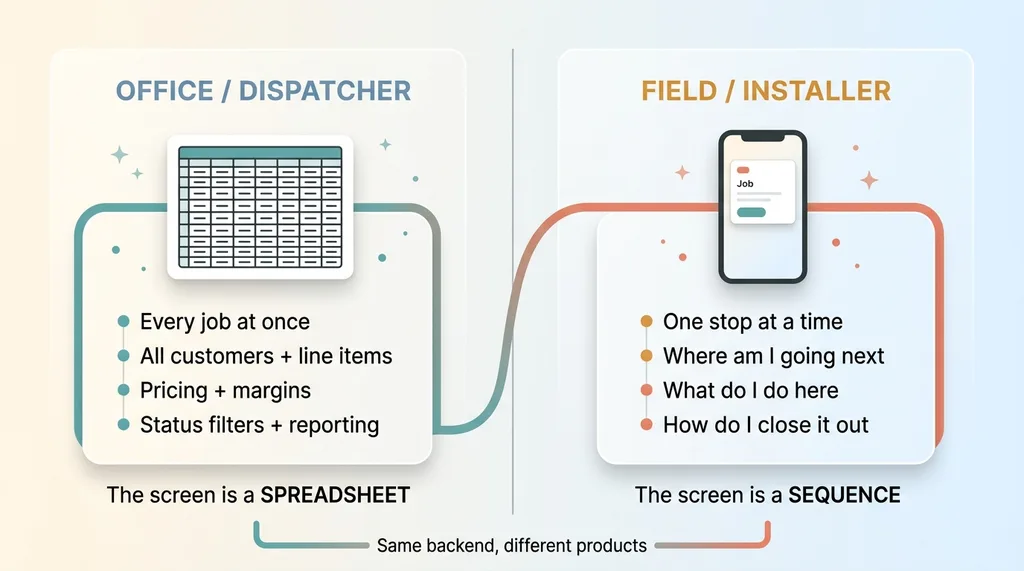 Office app vs Field app: opposite information needs
Start from the day, not the database
The office and the field have opposite information needs, and most apps are built from the office's perspective because that is who signs off on the design.
The office needs to see everything at once. Every job, every customer, every line item, every status, every dollar. That is a spreadsheet view, and for a dispatcher it is exactly right.
The installer needs the opposite. One thing at a time. Where am I going next. Who do I call. What do I do here. How do I close it out and leave.
Mobile first field app design means designing for one person, one stop, one moment. The office screen is a spreadsheet. The field screen is a sequence. When you start from the day instead of the database, the whole layout changes.
The installer doesn't need your org chart
Here is what I strip out of a field role, and why each removal is a feature, not a limitation:
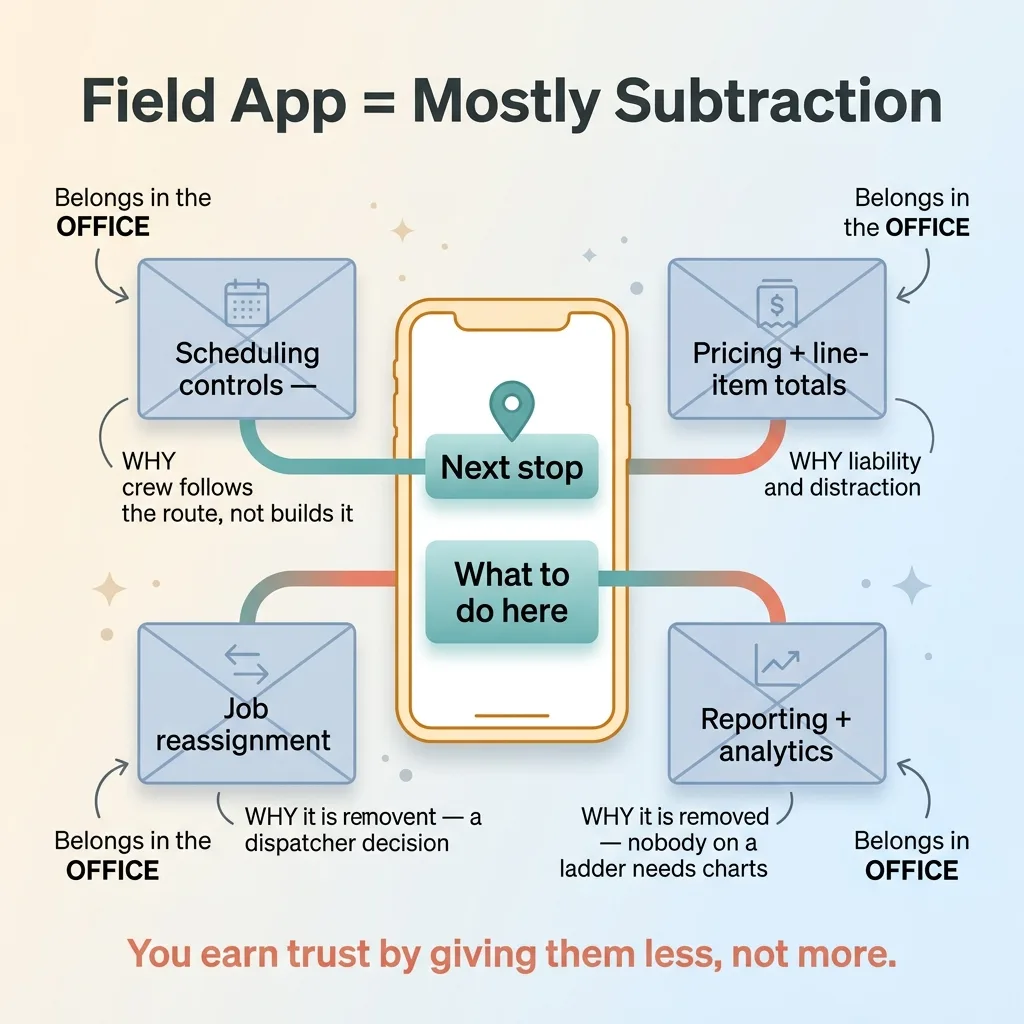 What gets stripped out of the field role (subtraction as a feature)
- Scheduling controls. The crew doesn't build the route, they follow it. A reassignment button on a roof is a mistake waiting to happen.
- Pricing and line-item totals. No installer needs to see margins or customer billing. It is a liability and a distraction.
- Job reassignment. Field roles should never be able to move work between crews. That is a dispatcher decision with downstream effects.
- Reporting and analytics. Nobody on a ladder needs a completion-rate chart.
Every one of those belongs in the office. Putting them in the field app does not empower the crew. It buries the two things they actually need under controls they will never touch.
Good installer app UX is mostly subtraction. You earn the crew's trust by giving them less, not more.
The 'My Day' Landing: Today's Stops, In Order
The home screen I built does one thing. It shows today's stops, in time order, top to bottom.
That is the entire screen. No dashboard, no filters, no search bar the crew has to think about.
Each stop has two taps that matter. Tap the address, it hands off to maps and starts navigation. Tap the phone, it calls the customer. The crew never types an address, never copies a number, never hunts for a "navigate" option three menus deep.
When a stop is finished, it sinks to the bottom of the list and dims. It does not disappear. The completed work is still there if anyone needs to check it, but it is visually demoted so the next live job is always at the top.
This matters more than it sounds. Think about a tired crew at 3pm. They should glance at the phone and instantly see two stops left, not a wall of controls they have to parse. The dimming does the cognitive work for them. Bright and at the top means do this. Dim and at the bottom means done.
I chose dimming over hiding on purpose. Hiding completed work creates anxiety, the crew wonders if it saved, if it counted, if it vanished. Dimming keeps the record visible while making the next action obvious. Zero scrolling to find the next job. Zero hunting through a dashboard.
That is installer app UX done right. The screen answers the only question that matters, where do I go next, before the crew even asks it.
The Field-First Job Screen and Per-Window Checklist
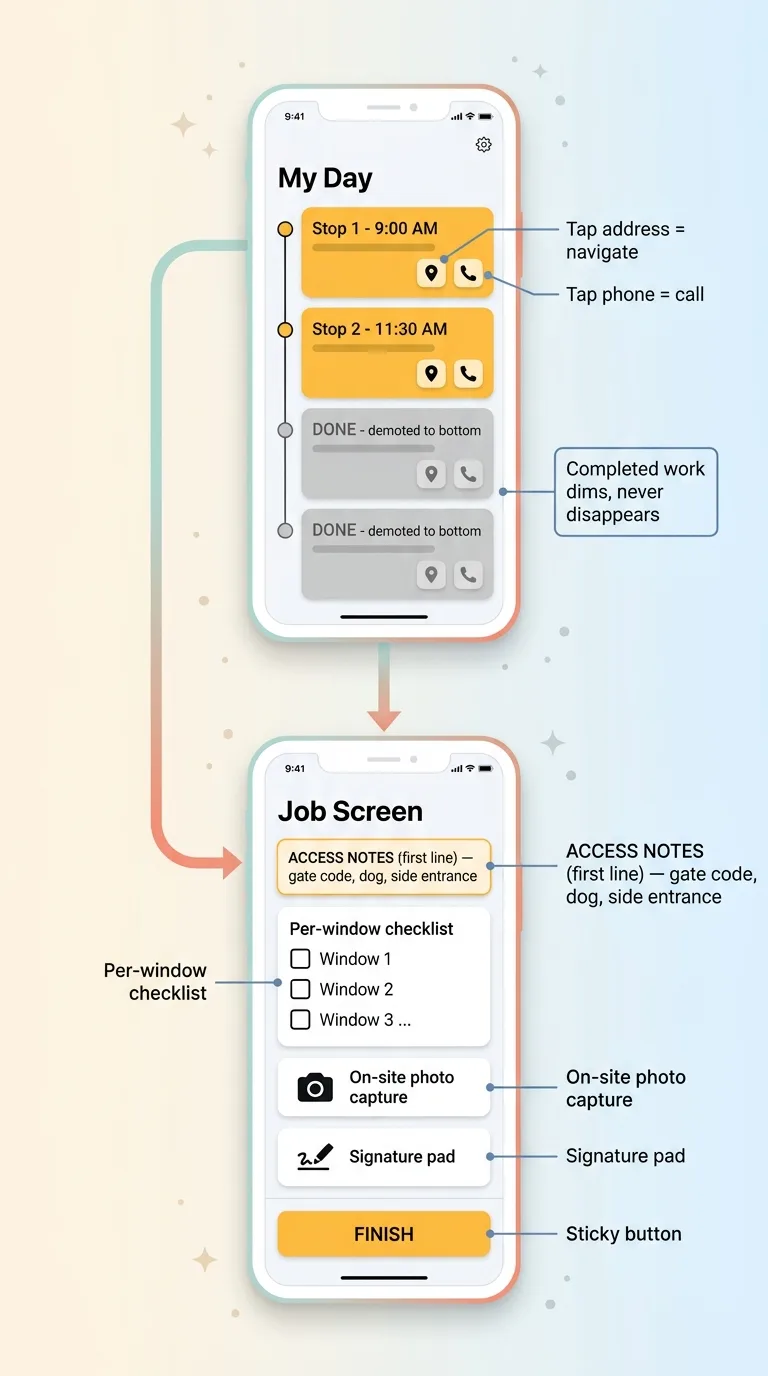 The 'My Day' landing screen and field-first job screen
Access notes before anything else
Tap a stop and you get the job screen. Customer name, address, and access notes sit at the very top. Not buried in a tab. Not behind a "details" expander. The first line of the screen.
Why? Because the first problem on every job site is getting in the door. Gate code. Dog in the backyard. Use the side entrance. Knock loud, the bell is broken. If the crew has to dig for that information while standing on the porch, the app already failed.
Putting access notes first is a one-decision change that kills a category of "I'm here but I can't get in" calls back to the office.
A checklist tied to the actual work
Below that, a per-window install checklist. Not one vague "job complete" checkbox. A line for each unit the crew is installing.
This is the difference between software designed in an office and software designed for the truck. In an office, "job complete" is a status. On site, a job is twelve windows, and any one of them can have a problem. A per-window checklist forces the crew to confirm each unit individually, which is exactly the granularity you want when a customer calls three days later about the window in the back bedroom.
Two more elements live on this screen:
- On-site photo capture. Proof of work and proof of condition. If a blind was already scratched when the crew arrived, the photo settles the dispute before it starts.
- A customer signature pad. Sign-off captured on site, before the crew leaves. No chasing signatures later, no "I never approved that."
Each element maps to a real on-site moment and removes a callback or a dispute down the line. The access note prevents a "can't get in" call. The per-window checklist prevents a "you missed one" call. The photo prevents a "you damaged it" dispute. The signature prevents a "I never signed off" dispute.
That is what field-first means. Every field on the screen earns its place by killing a future problem.
One Sticky Finish Button That Does Three Things
Here is the closeout most apps get wrong. They make the crew do three separate actions. Set the job status. Mark the completion. Log the start time. Three taps, three places, three chances to miss one.
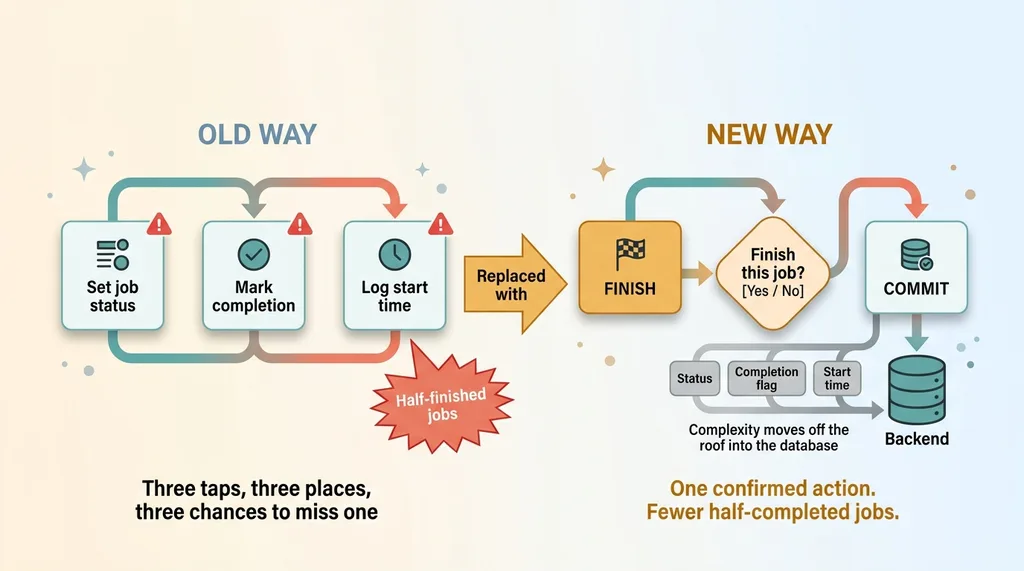 One Finish button replaces three separate actions (confirm-gated)
I replaced all of it with one sticky Finish button at the bottom of the job screen. Press it, and it does all three in a single action. Status, completion, timestamp. Done.
But it is confirm-gated. The button does not commit on the first tap. It asks, "Finish this job?" and waits for a yes. This is confirm-gated, human-in-the-loop design applied to a field workflow. The crew controls the commit, and a stray tap while packing up the truck does not accidentally close out a job that is not actually done.
Think about who is pressing this button. Someone with a drill in one hand, coiling an extension cord, half-listening to the customer, ready to get to the next stop. A multi-step closeout form is where jobs go to die half-finished. You get the "I thought I marked it done" problem, where the office shows a job open and the crew swears it was closed.
One confirmed action solves that. Fewer taps. Fewer half-completed jobs. One clean commit.
And here is the part that keeps the office happy: they still get the full granular record. Status, completion flag, start time, all of it, stored separately on the backend. The field just gets one clean action instead of three. The complexity didn't disappear. It moved off the roof and into the database where it belongs.
The Adversarial Review That Caught 18 Bugs Before Deploy
Before this shipped, I ran a multi-lens adversarial code review against it. The same kind of multi-lens security audit I run on anything that touches customer data. It surfaced 18 issues. All 18 were fixed before deploy.
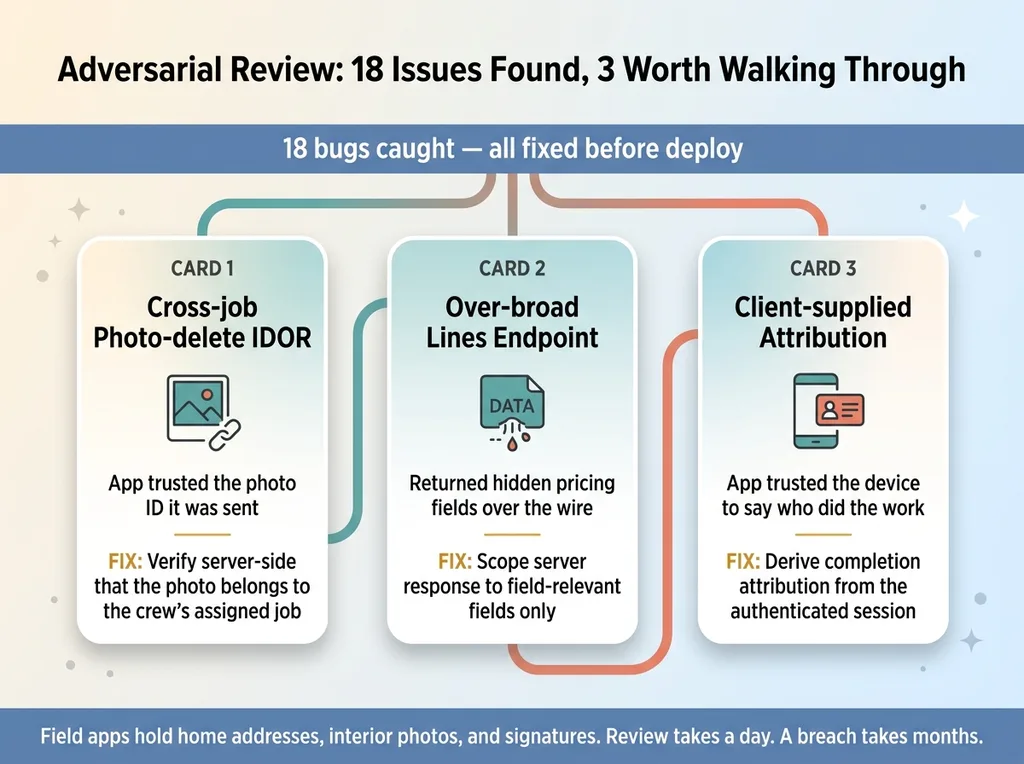 The three security bugs the adversarial review caught
Three of them are worth walking through, because they are the kind of bug that does not show up in testing but absolutely shows up when someone goes looking.
The cross-job photo-delete IDOR
The photo-delete endpoint trusted the photo ID the app sent it. Change that ID, and an installer could delete a photo attached to a job that was not theirs.
This is a classic IDOR, an insecure direct object reference, and it is the exact kind of IDOR protection most AI builders never think about. The app looked fine because in normal use, the crew only ever sends their own photo IDs. But "normal use" is not the threat model. The fix was to verify, server-side, that the photo belongs to a job assigned to the crew making the request. Without that check, one curious or malicious user could wipe proof-of-work photos across the entire company.
Over-broad endpoints and client-supplied attribution
The second bug was an over-broad lines endpoint. It returned more line-item data than a field role should ever see, including pricing fields I had deliberately kept off the screen. The data was hidden in the UI but still flowing over the wire, which means it was one network inspector away from exposed. The fix was to scope the response on the server so field roles only receive field-relevant fields.
The third was client-supplied attribution. The app trusted the device to say who completed the work. Whoever the phone claimed to be, the record believed. That is backwards. Completion attribution has to be derived server-side from the authenticated session, never accepted from the client. Otherwise your signed-off, photo-documented, legally-relevant record of "who did this work" is editable by anyone who can fake a request.
The broader point: speed without adversarial review ships security debt. Field apps handle real customer home addresses, photos of the inside of people's houses, and signatures. The stakes are not theoretical. You cannot ship that on trust and patch it later. The review takes a day. Cleaning up a breach takes months and costs you the client.
Build the Tool Your Crew Will Actually Open
A field app does not fail because the team resists technology. It fails because nobody designed for the moment they are in. The crew is on a ladder at a stranger's house with a drill in one hand. Hand them a dispatcher dashboard and of course they avoid it.
The fix is not a bigger feature list. It is ruthless removal. Strip out everything that does not belong on site, surface the two or three things that do, and order the whole experience around the actual day instead of the database. Then run a real security pass before it ever touches a customer address.
That is the work I do as a Chief AI Officer. Rebuild the on-site experience around how the day actually goes, ship it, and make sure it is safe to put in front of real customers. Not a slide deck about field digitization. A tool the crew opens without being told to.
If your field team dreads the software you handed them, that is a design problem, and design problems have fixes. Let's talk about the software your team actually uses.
Want to explore what AI could do for your business?
Book a free 30-minute strategy call. No pitch deck, no sales team, just a real conversation about your operations and where AI actually fits.
Get AI insights for business leaders
Practical AI strategy from someone who built the systems — not just studied them. No spam, no fluff.
Hodgen.AI
Ready to automate your growth?
Book a free 30-minute strategy call with Hodgen.AI.
Book a Strategy Call