The Feature That Looked Trivial and Wasn't
I built a skills-training app to solve my own problem. The core loop is simple: users repeat short answers back, over and over, until the material sticks. Most of those answers were single letters or short codes. And on a phone, typing one character at a time is friction that kills the whole rhythm.
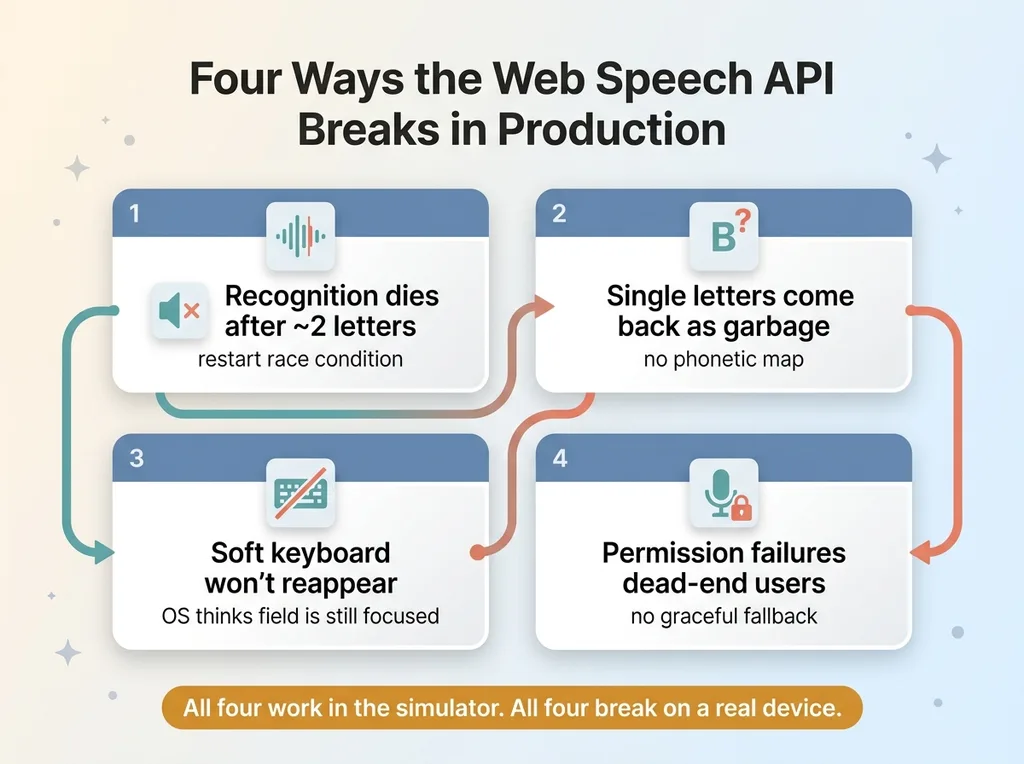 The four predictable Web Speech API failure modes
So the fix seemed obvious. Let people say the letter instead of typing it. Tap the mic, say "B," move on. A one-day feature, maybe two if I was unlucky.
The Web Speech API fought me for a week.
This is a piece about web speech api debugging, and specifically about the four failures that turned a one-day feature into a week of swearing at my phone. Recognition that died after about two letters. Single letters coming back as garbage or nothing. A soft keyboard that flat-out refused to reappear when users wanted to type instead. And permission failures that dead-ended people on a broken screen.
Every one of those worked fine in the simulator. Every one of them broke on a real device with a real user.
Here is the buyer's real question, the one a CEO actually cares about: is voice input production-ready, or is it going to frustrate users and generate support tickets?
The honest answer is that it can be production-ready. But only after you handle a pile of un-glamorous edge cases that nobody documents and that don't show up until someone who isn't you uses the thing. The happy path is easy. The tail is where the work lives.
Let me walk through all four, because each one taught me something specific about why these features feel janky in the wild.
Why Speech Recognition Drops Out After Two Letters
The first thing that broke: recognition worked for one or two inputs, then died completely. No error the user could see. The mic just stopped listening.
The restart race condition
Here is the part nobody tells you. Continuous recognition is not actually continuous on mobile. You set continuous = true and you assume it stays on. It doesn't. The API stops on its own after a short utterance or a beat of silence. Mobile browsers are aggressive about this to save battery and respect privacy.
So the naive fix is to restart recognition inside the onend handler. The session ends, you immediately call start() again, and listening continues. Clean, right?
Wrong. If you call start() before the previous session has fully torn down, the engine either throws an InvalidStateError or, worse, silently kills itself. You get the classic "speech recognition drops out" behavior: it works for the first attempt, maybe the second, then nothing.
The reason this is so nasty is that it's invisible in testing. Your first few attempts always work, because the engine hasn't gotten into a bad state yet. You demo it, it's fine. You ship it. Then a real user does ten reps in a row and it dies on rep three.
The guard that fixed it
The fix is a restart race-condition guard. You track state explicitly and you never let two sessions overlap.
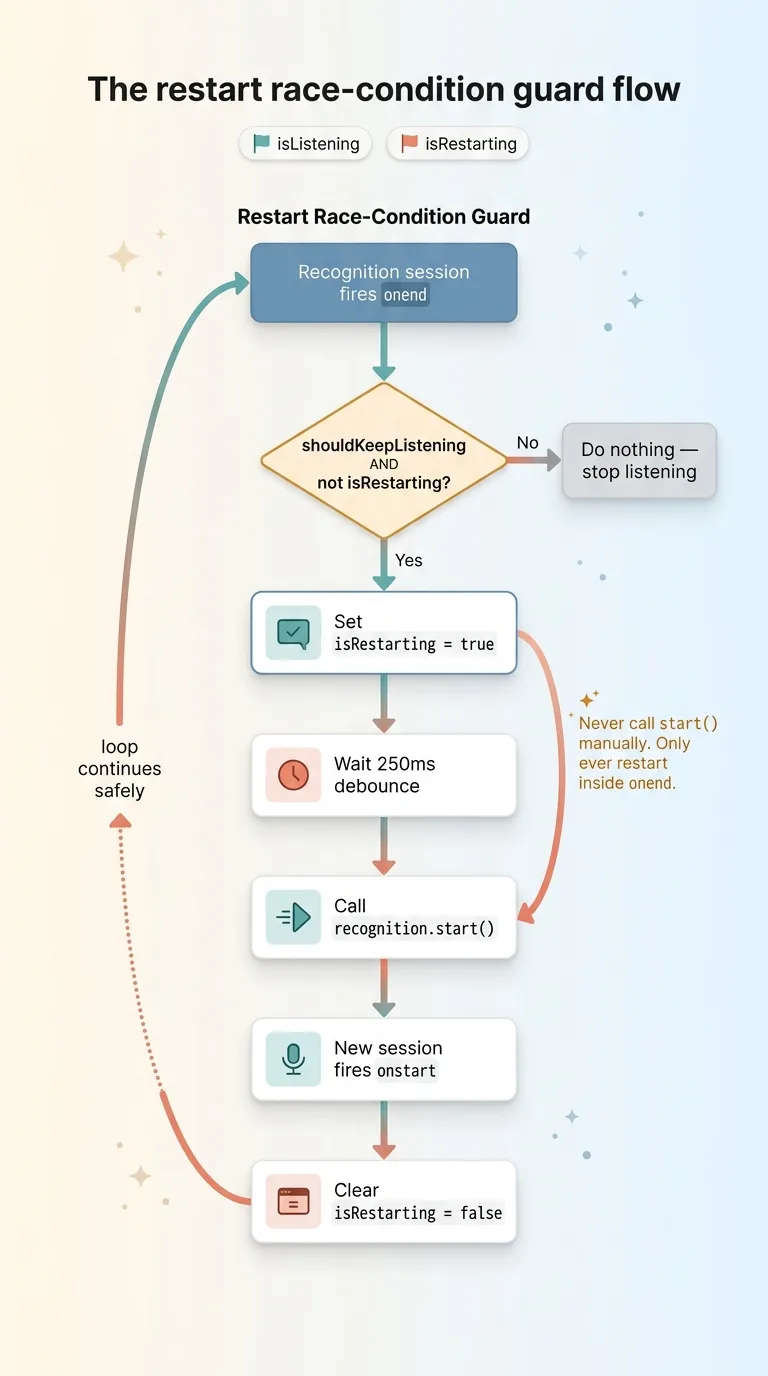 The restart race-condition guard flow
The pattern looks like this conceptually:
- Keep two flags:
isListeningandisRestarting. - Only ever call
start()from inside theonendcallback, never manually. - Before restarting, check the flags. If a session is still ending, don't start.
- Debounce the restart with a short delay so the previous session has room to fully tear down.
- Set
isRestarting = truebefore you callstart(), clear it once the new session firesonstart.
onend = () => {
  if (shouldKeepListening && !isRestarting) {
    isRestarting = true;
    setTimeout(() => {
      recognition.start();
    }, 250);
  }
};
That 250ms debounce is the difference between a feature that survives a real session and one that dies on the third rep. Tune it per platform. The point is you stop trusting the API to behave and you gate every restart behind explicit state.
Single Letters Are Unrecognizable Without a Phonetic Map
Once recognition stopped dying, I hit the second wall. The engine just couldn't hear single letters.
Why 'B' comes back as empty or wrong
Speech recognition models are trained on words and phrases. Natural language. They expect context. A single isolated letter is the worst possible input for these models, because there's no surrounding signal to disambiguate.
Say "B" out loud. The engine returns nothing. Or it returns "be." Or "bee." Or "V," because B and V sound nearly identical over a phone mic. Say "C" and you get "see" or "sea." Say "R" and you get "are." Say "U" and you get "you."
The model isn't broken. It's doing exactly what it was trained to do: transcribe spoken language. It just was never built to map a sound to one of 26 letters.
Building the NATO sound map
The solution is phonetic voice recognition. You stop expecting the engine to return the letter and instead map what it actually hears back to the letter you mean.
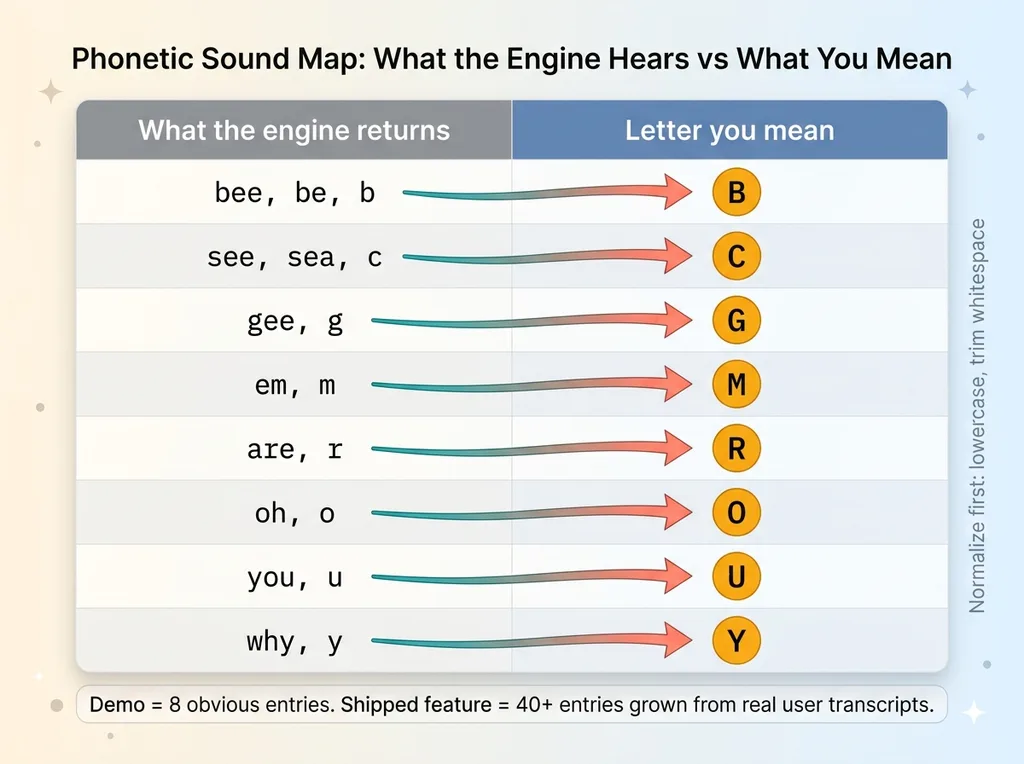 NATO-style phonetic sound map for single letters
So you build a lookup table. Normalize the transcript first (lowercase, trim whitespace), then resolve it against the map. A slice of mine looks like this:
| What the engine returns | Letter | |---|---| | bee, be, b | B | | see, sea, c | C | | gee, g | G | | em, m | M | | are, r | R | | oh, o | O | | you, u | U | | why, y | Y |
The map needs to stay open. You do not get it right on the first pass. Real users in real environments surface mishears you never predicted. Someone with a different accent says "M" and the engine hears "him." Someone in a noisy room says "F" and you get "if." You add those rows as they come up.
That's the part that separates a demo from a shipped feature. The demo handles the eight obvious cases. The shipped feature has 40 entries because you spent two weeks watching what actual users said and what the engine actually returned. There's no shortcut. You log the raw transcripts, you read them, and you grow the map.
The Soft Keyboard That Won't Come Back
Third failure, and this one took me an embarrassing amount of time to even diagnose. After the listening phase ended, sometimes a user wanted to type instead. They'd tap the input field. And the soft keyboard would not appear.
This is a known but badly documented mobile gotcha, especially relevant if you're doing a voice input react native build like mine.
Blur-then-focus with platform-aware delays
The fix is a blur-then-focus pattern. You'd think calling focus() on the input would summon the keyboard. It doesn't, because the OS already thinks the field is focused. From its perspective nothing changed, so it does nothing.
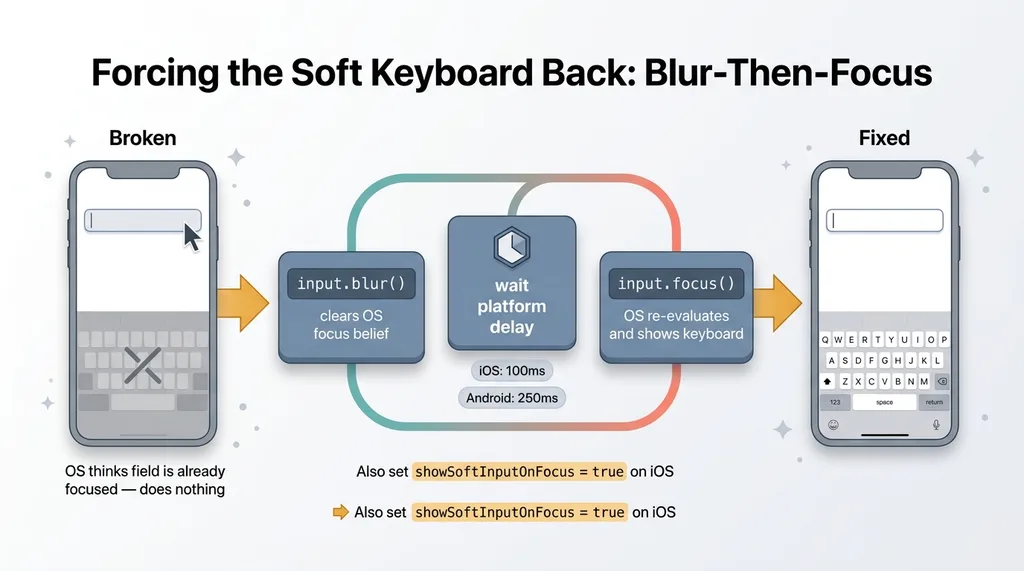 Blur-then-focus keyboard fix with platform-aware delays
You have to reset that state first. Blur the input programmatically, which clears the OS's belief that the field is active. Then re-focus it after a short delay, which forces the OS to re-evaluate and actually show the keyboard.
The sequence:
input.blur();
setTimeout(() => {
  input.focus();
}, Platform.OS === 'ios' ? 100 : 250);
The delay has to be platform-aware. iOS and Android re-evaluate focus on different timelines, and if your delay is wrong for the platform, the keyboard either flickers or stays hidden. I landed on roughly 100ms for one and 250ms for the other, dialed in by trial.
showSoftInputOnFocus and the iOS quirk
On the relevant platform you also have to set showSoftInputOnFocus to true to force the keyboard up. Some configurations leave it off after a programmatic focus, which means even a correct blur-then-focus does nothing.
Here's the kicker, and it's the same lesson from the boring reasons my app wouldn't run on a real phone: simulators hide this entirely. In the simulator the keyboard always appears because the simulator uses your laptop's keyboard. You only see the bug on a real phone, with a real soft keyboard, in a real session. If you're testing voice input exclusively in a simulator, you will ship this bug.
Permission Failures Should Fall Back, Not Dead-End
The fourth failure is the one that does the most damage to trust. A user denies the mic permission, or they're on a browser that doesn't support the Speech API at all, and they hit a broken screen. Now your voice feature has actively made the app worse than if it never existed.
Auto-falling back to the keyboard
The principle here is simple: voice is an enhancement, not a requirement. The core loop has to work without it.
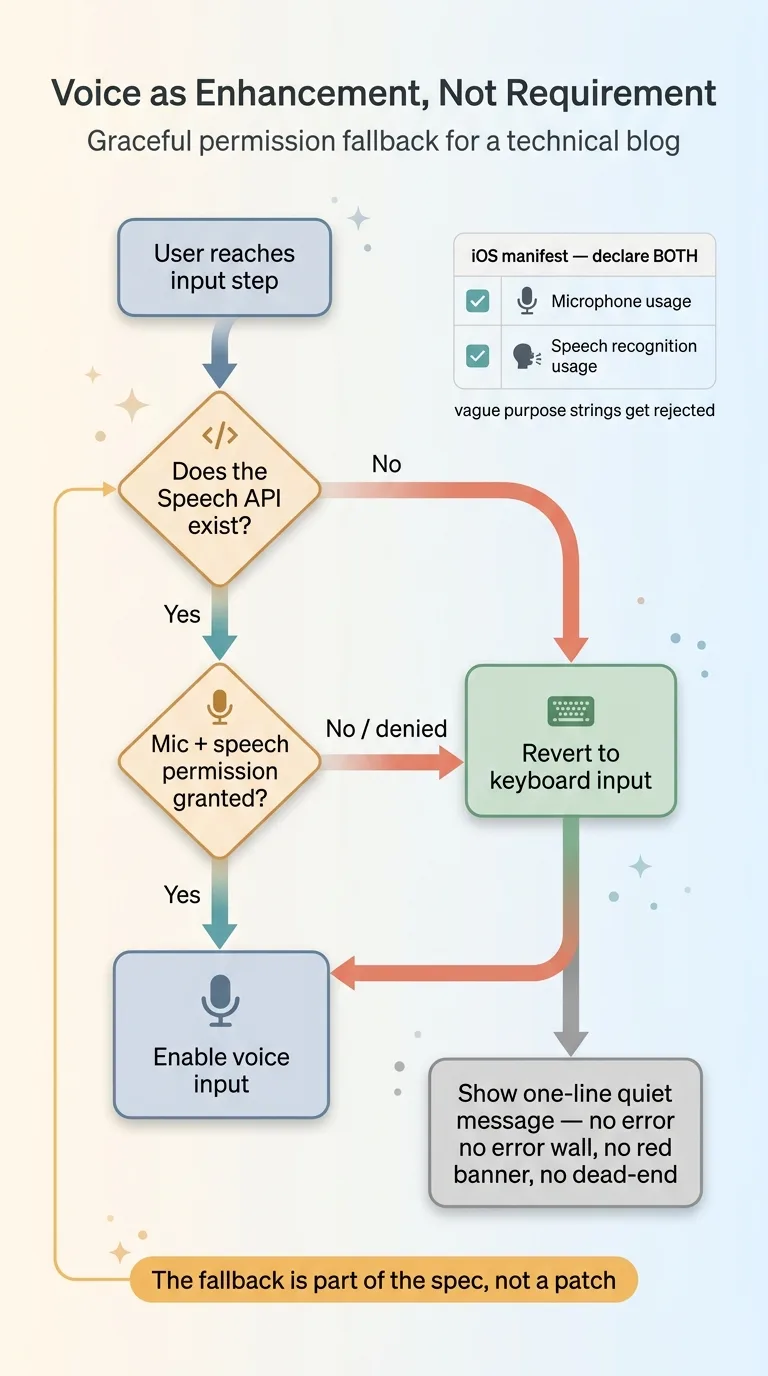 Graceful permission fallback decision tree
So you build the fallback deliberately. Detect whether the API exists. Detect whether permission was granted or denied. If either check fails, silently revert to keyboard input and show a quiet, one-line message instead of an error wall. No red banner, no "something went wrong," no dead end. Just the keyboard, working, like nothing happened.
This is graceful degradation by design, which I've written about as a broader principle in graceful fallbacks are a design choice, not an afterthought. You decide ahead of time what happens when the fancy path fails, and the fallback is part of the spec, not a patch you bolt on after a bug report.
iOS mic and speech-recognition declarations
There's a platform trap here too. On iOS you must declare two separate permissions in the app's manifest, each with a clear purpose string:
- Microphone usage, the obvious one most people remember.
- Speech recognition usage, a separate declaration that a lot of builders forget exists.
Miss the second one and the OS either rejects the request outright or your app gets bounced at App Store review. The mic permission and the speech-recognition permission are not the same thing, and the engine needs both. Put both on your pre-submission checklist with real, specific purpose strings. Vague strings get rejected too.
Is Voice Input Production-Ready? The Honest Answer
Yes. But only if you treat it as a feature with a long edge-case tail, not a checkbox you tick when the demo works.
The Web Speech API is solid in the happy path and breaks in four predictable ways: restart races that kill recognition after a couple inputs, single-letter recognition that needs a phonetic map, a keyboard that won't re-display, and permission handling that dead-ends users. Every one of those is invisible until a real person on a real device hits it.
That's the whole reason most voice features feel janky. They were shipped after the demo worked and before the edge cases were handled. The gap between "works on my machine" and "works for a stranger on a three-year-old Android" is exactly these four problems.
It's worth saying that input voice recognition is a fundamentally different problem from output voice. When I needed the app to speak to users, I made a separate, deliberate call to use human recordings over AI voices. Generating speech and recognizing speech share almost nothing technically, and conflating them is a common mistake.
And I'll be straight about what still doesn't work great. Accents are hard. Noisy environments are hard. Very short utterances, like single letters, are the hardest case of all. I didn't solve those. I worked around them. The phonetic map and the keyboard fallback exist precisely because the underlying recognition will never be perfect. You build the scaffolding that makes imperfect recognition feel reliable.
What This Kind of Debugging Actually Buys You
Here's the thread running through all of this. Shipping a feature that feels effortless to the user requires the un-glamorous debugging that most teams skip or run out of patience for. The voice button that "just works" is sitting on top of a restart guard, a 40-row phonetic map, a platform-aware keyboard hack, and a deliberate permission fallback. None of that is visible. All of it is the difference between a feature people use and one they abandon.
This is what I do across every build. I find the four failures nobody warned you about and I close them before your users do. I build the systems, I don't just advise on them from a slide deck. I ship the boring plumbing that makes the flashy part actually work, because the flashy part without the plumbing is a demo, not a product.
Get the next build note.
I write up each system I build, including what broke. Subscribe to my newsletter and I'll send you the next one.